Upload your photo
Drop in any picture: a product shot, a portrait, a screenshot, a listing photo. PNG, JPG and WebP up to 6 MB work.


Free AI image editor online. Upload a photo, type what to change, and remove objects, swap backgrounds, recolor or relight in seconds. No sign-up.
Home / AI tools / AI Image Editor
PNG, JPG or WebP, up to 6 MB
Aspect ratio: 1:1, 4:3, 3:4, 16:9, 9:16
One free run per visitor, verified automatically, no account needed.
How it works
No layers, masks or brushes. Tell the editor what should be different and it does the work.
Drop in any picture: a product shot, a portrait, a screenshot, a listing photo. PNG, JPG and WebP up to 6 MB work.
Say what should change and what should stay: "remove the car", "make the wall sage green", "replace the sky with a sunset". Plain language is enough.
The model keeps everything you did not mention and changes only what you asked for. Download the result or keep refining inside Krater.
Before and after
Every pair below was edited on Krater from the photo on the left with the prompt shown underneath. Copy a prompt and adapt it to your own photo.
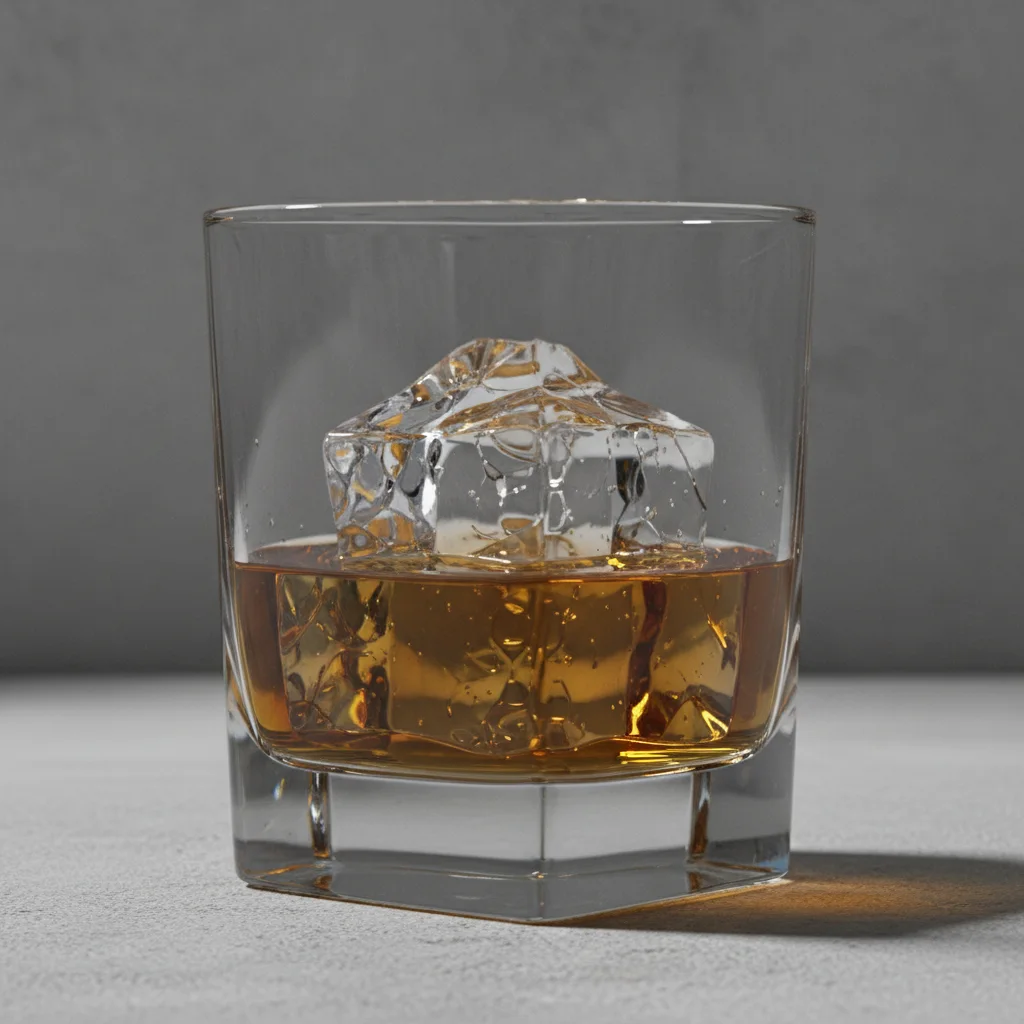
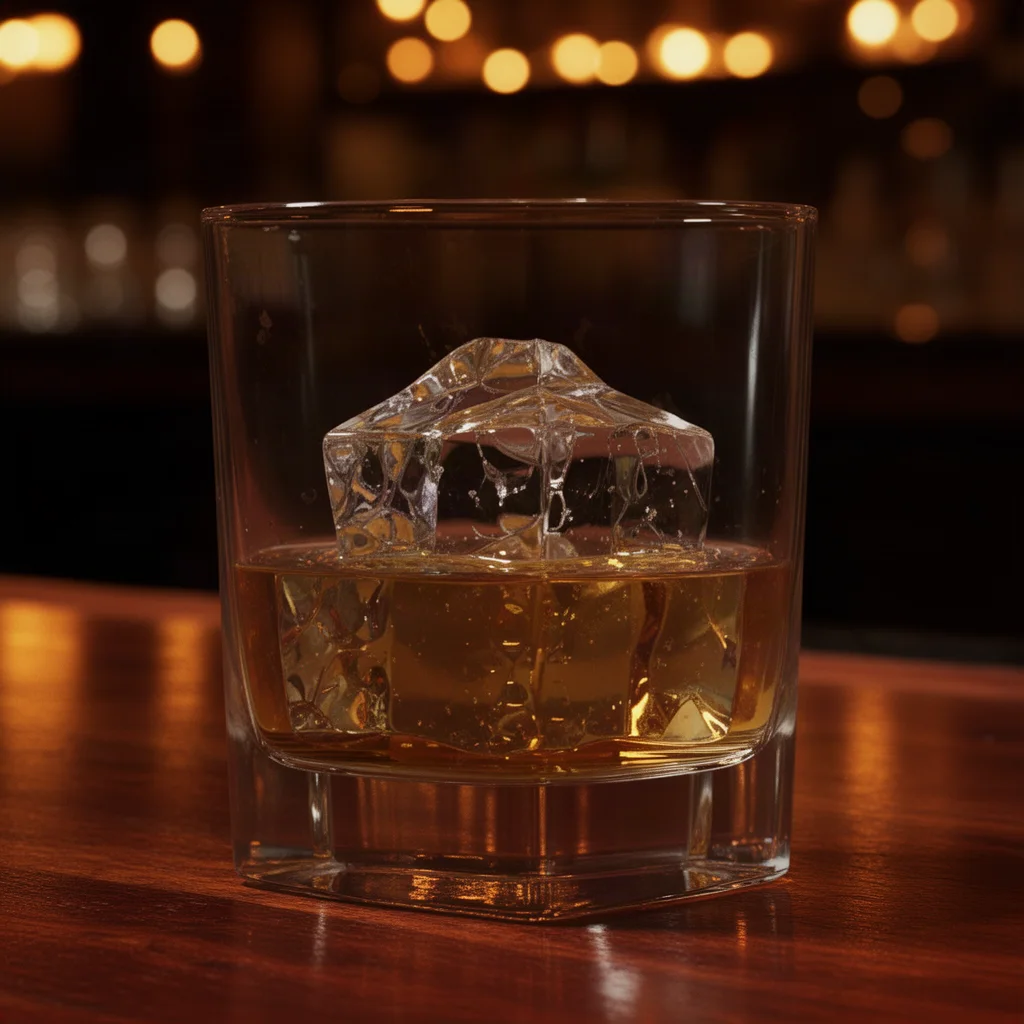
Prompt: Replace the background with a dimly lit wooden bar counter at night with warm bokeh lights, keep the glass and ice exactly the same
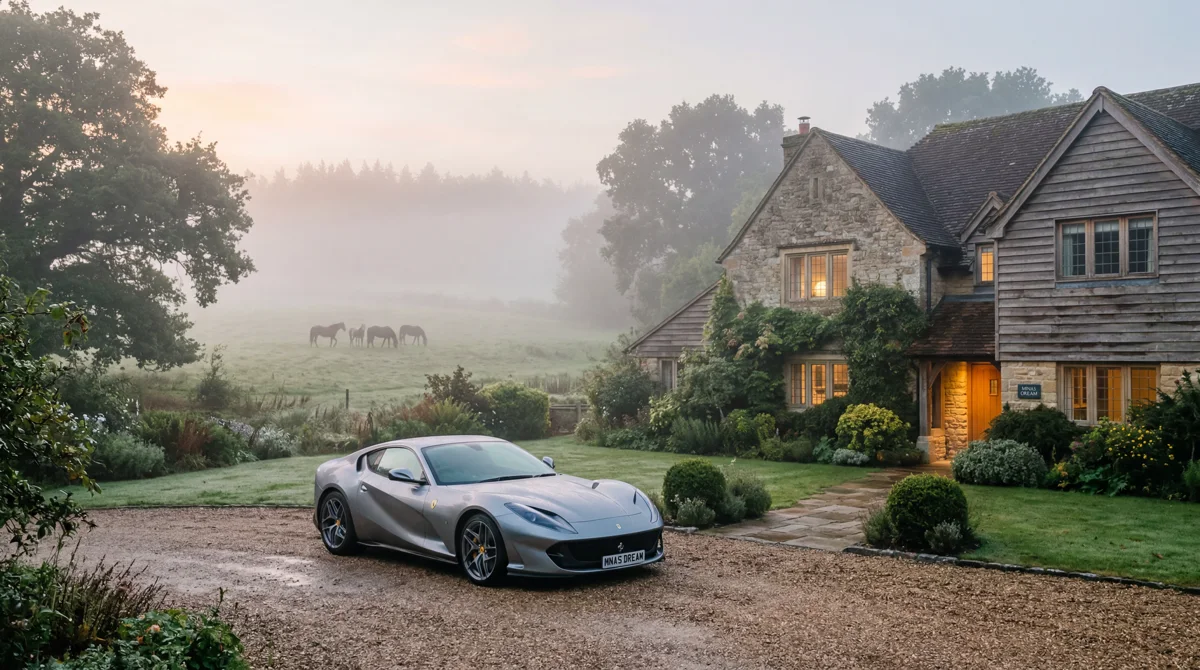
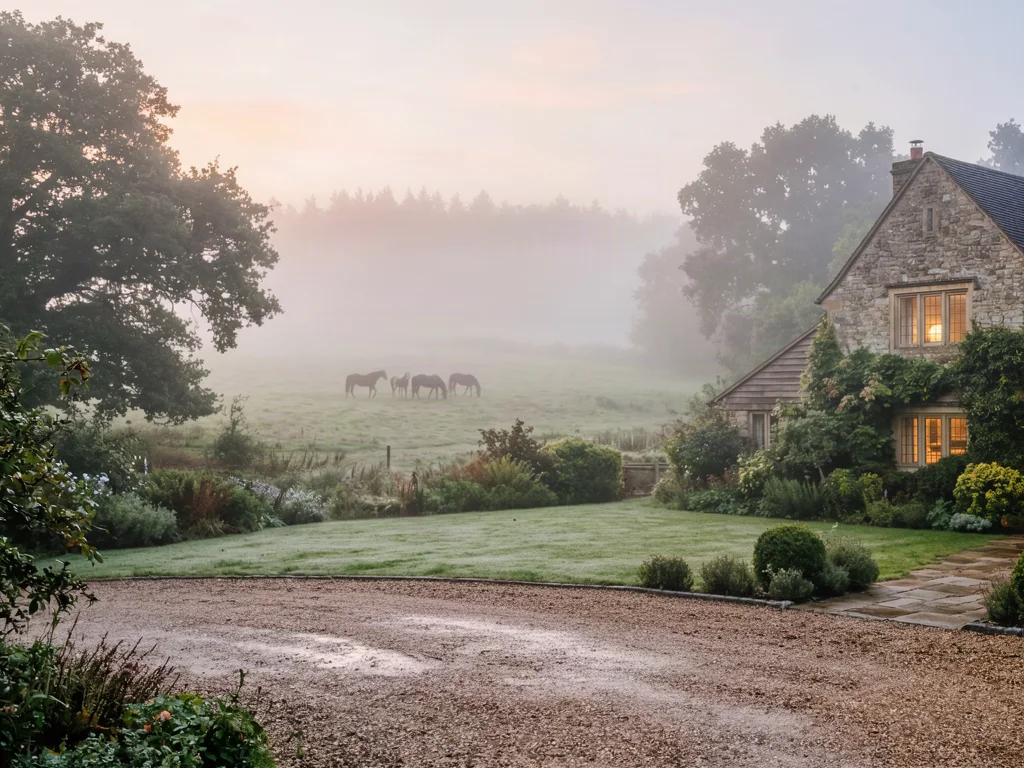
Prompt: Remove the car from the driveway completely and fill the space with the same wet driveway and lawn, keep everything else identical
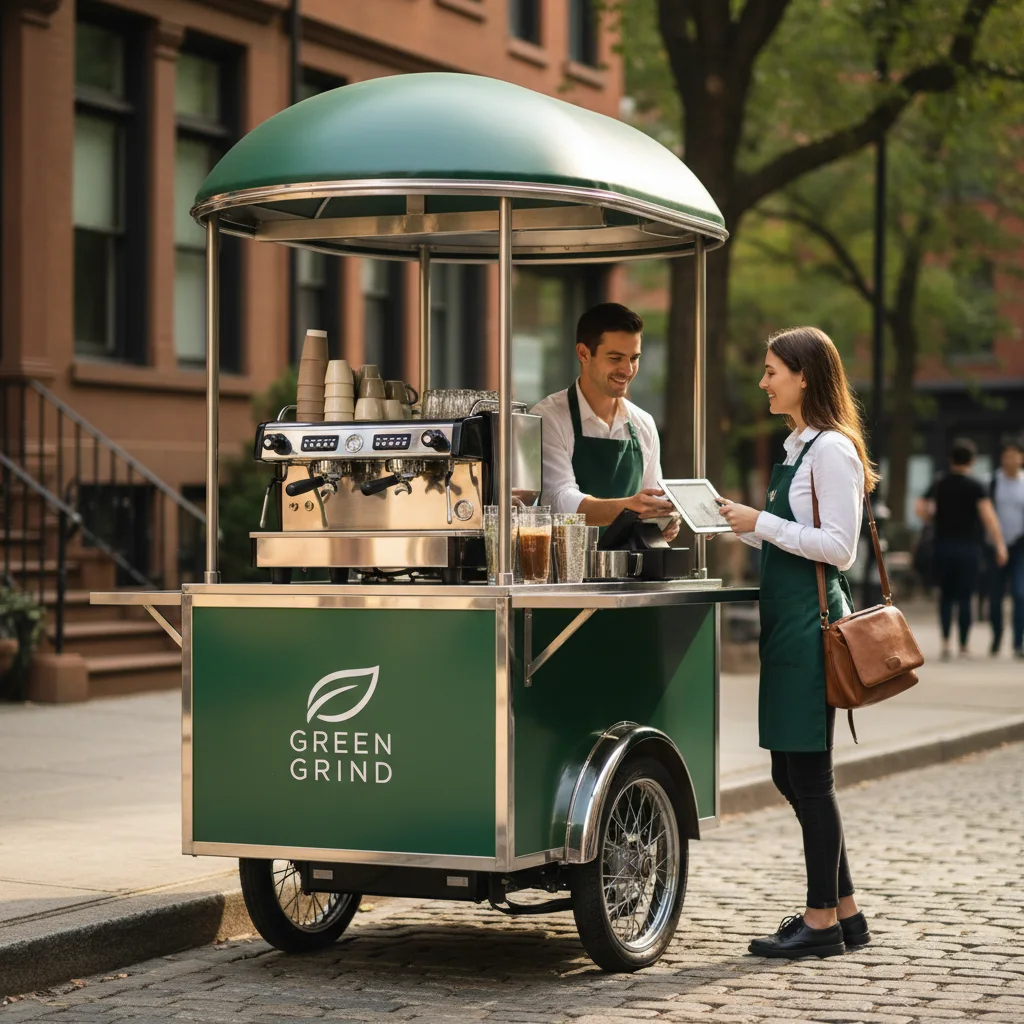
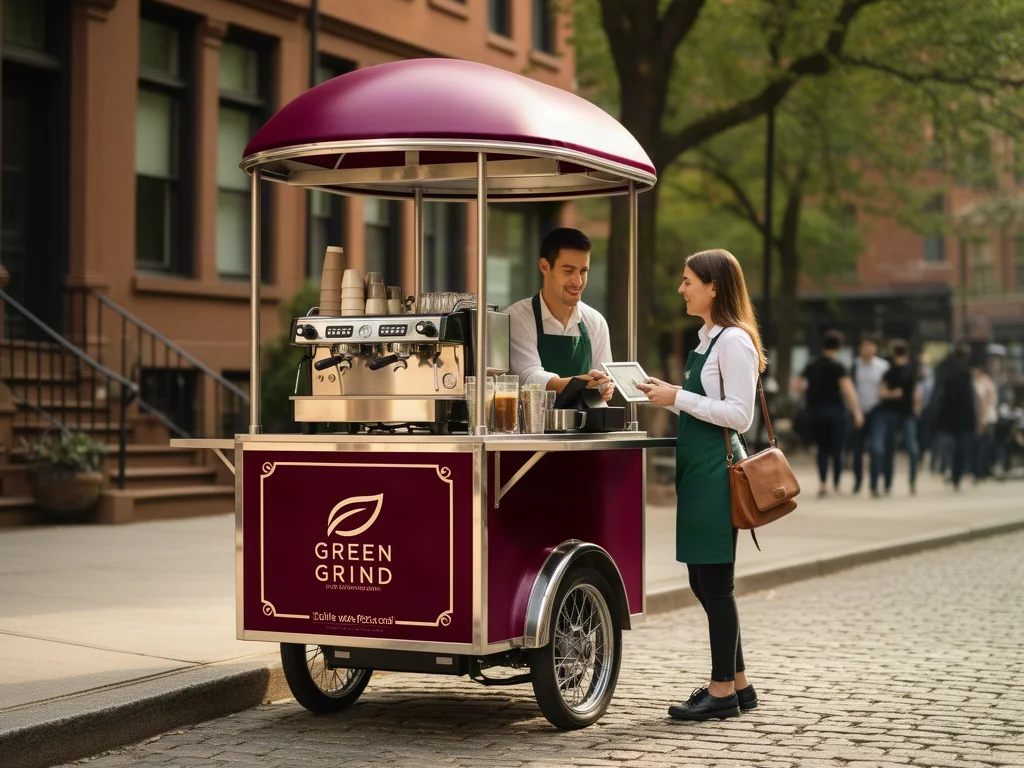
Prompt: Change the coffee cart from green to deep burgundy red with cream lettering, keep the people, street and lighting the same
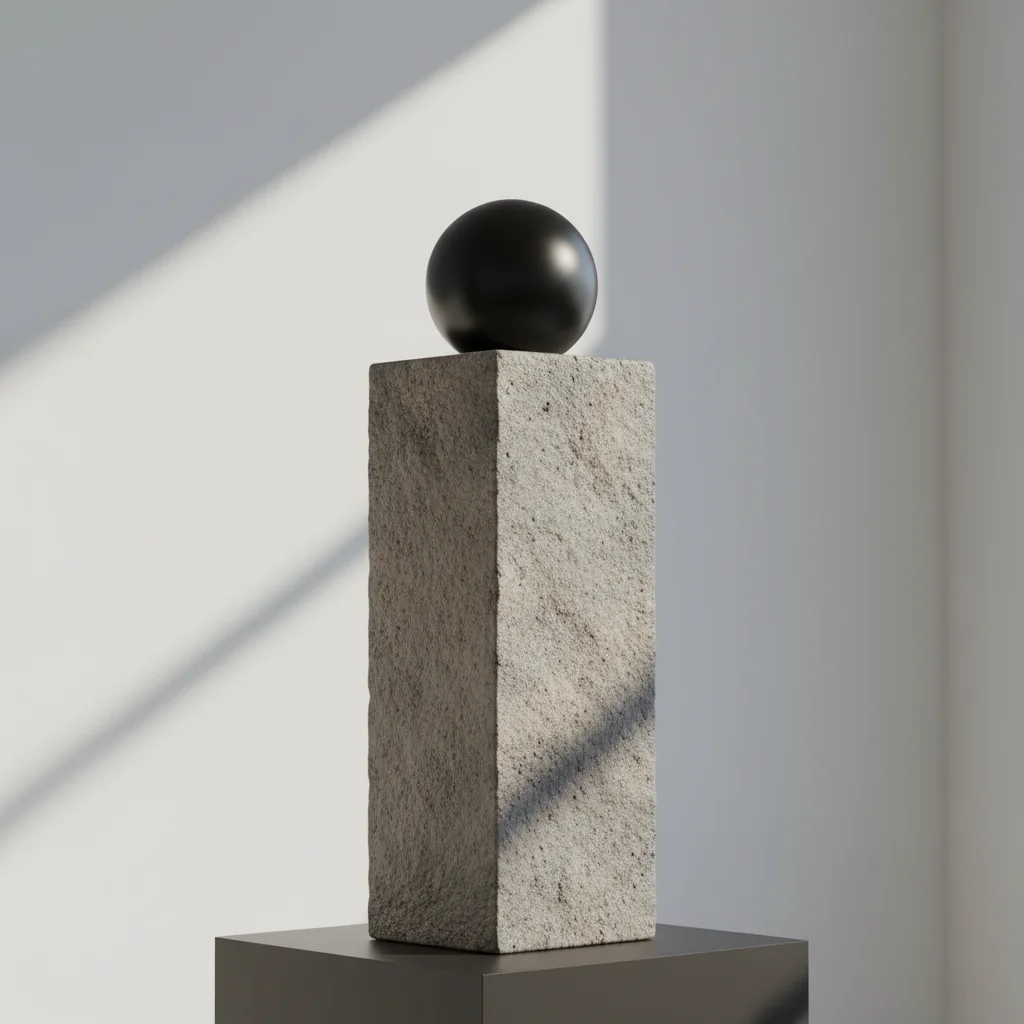
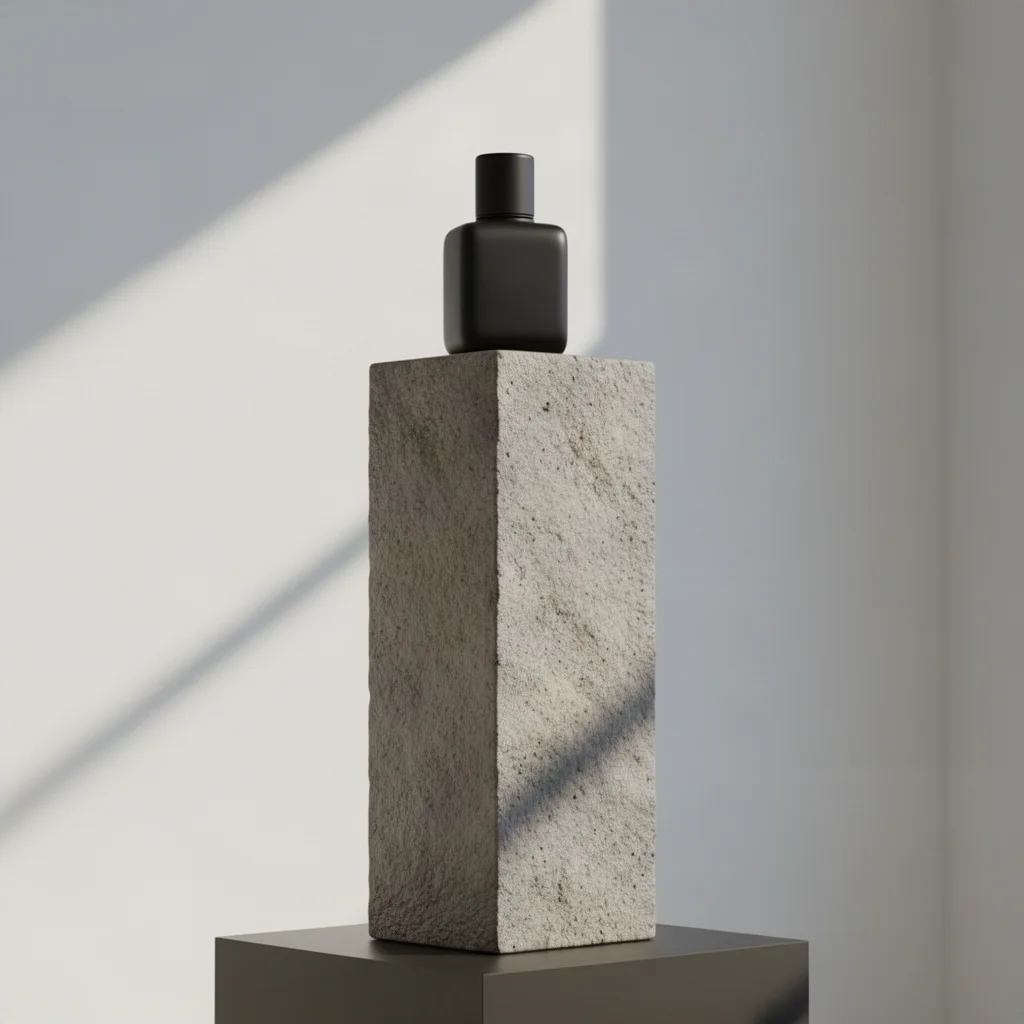
Prompt: Place a small matte black perfume bottle on top of the marble pedestal in the same lighting, keep the rest of the scene identical
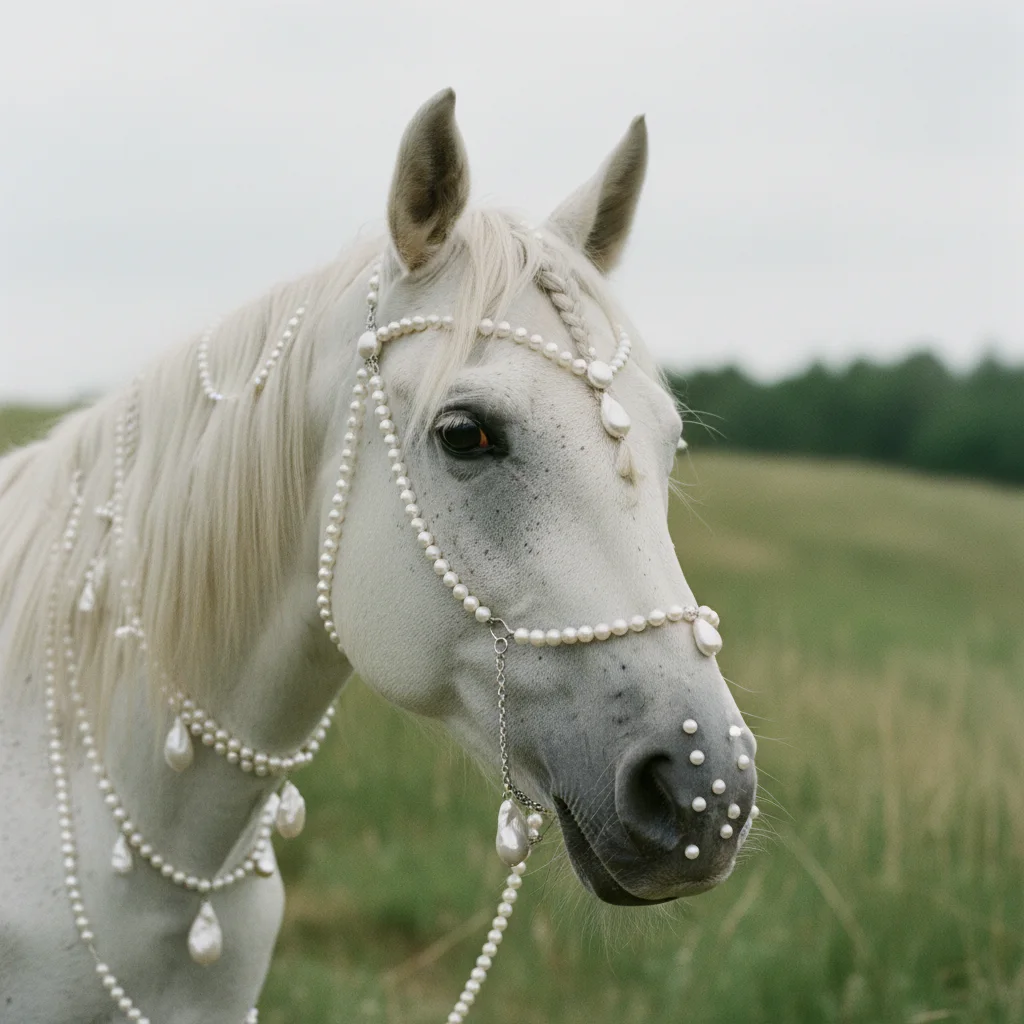
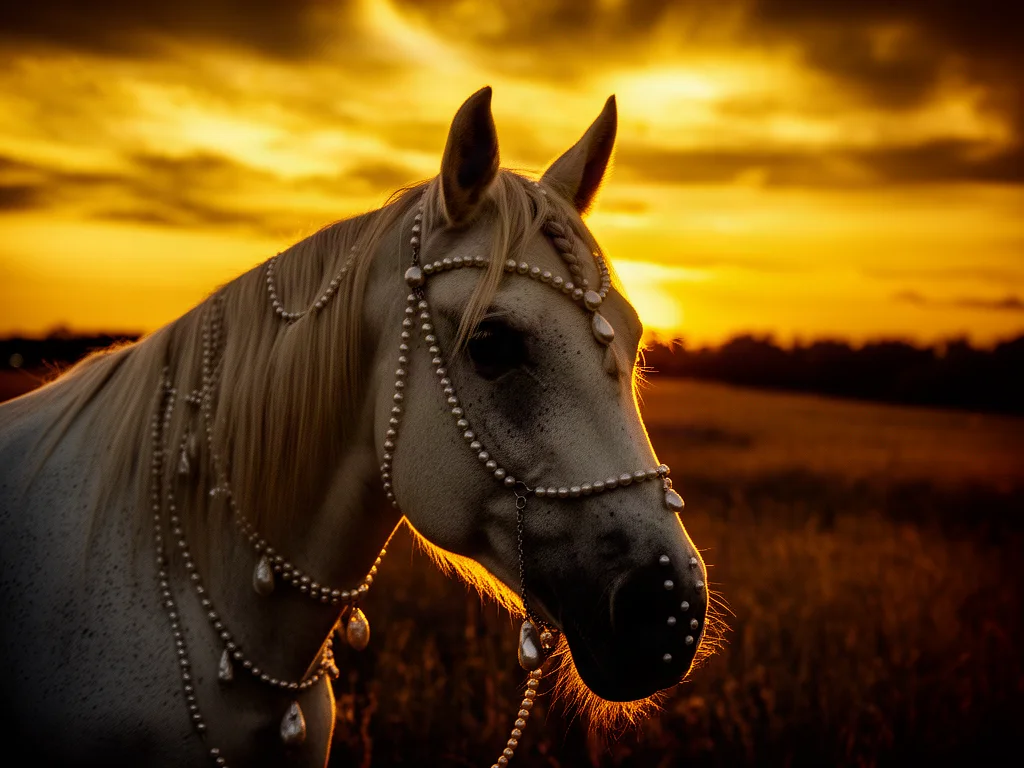
Prompt: Replace the sky with a dramatic golden sunset and warm evening light on the horse and the field, keep the horse identical
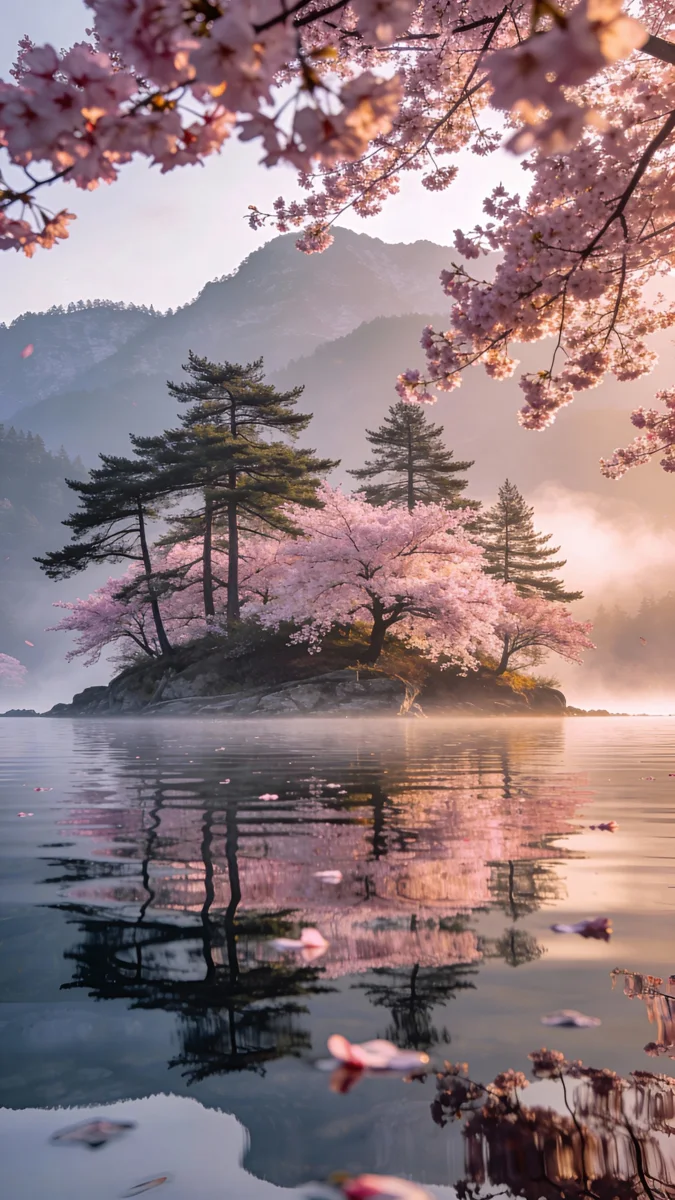
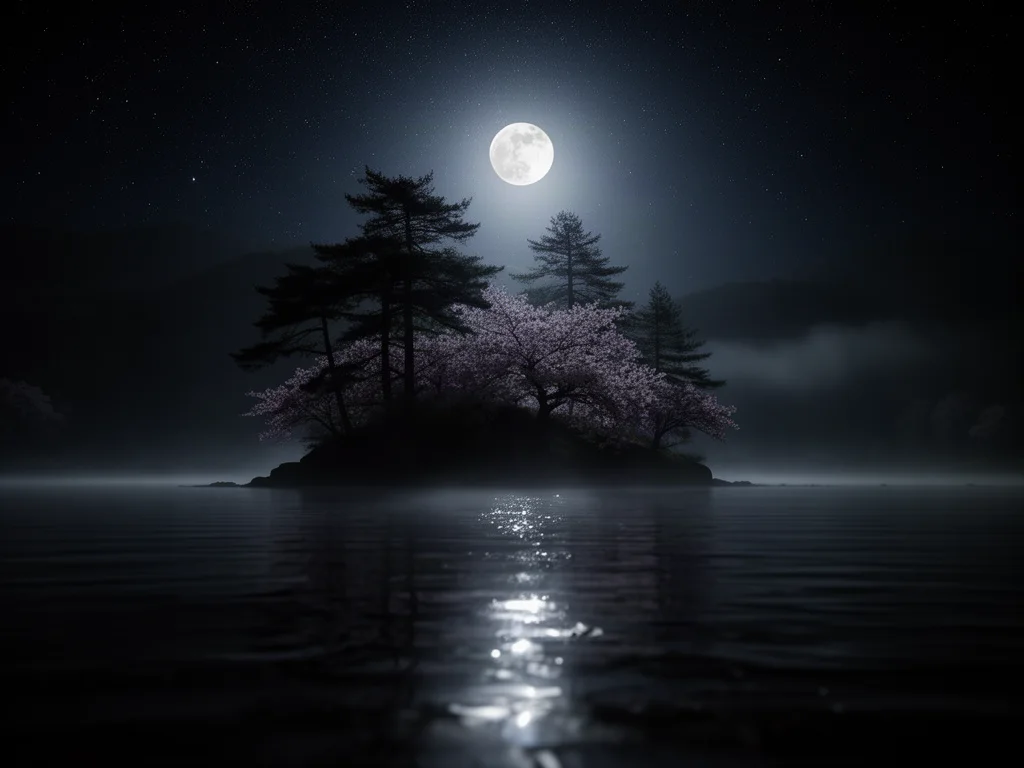
Prompt: Turn this scene into night with a full moon, star filled sky and soft moonlight reflections on the water, keep the composition the same
AI photo editor
An AI image editor changes a photo based on a written instruction instead of manual selections, layers and brushes. You upload the picture, describe the edit, and the model rewrites only the pixels that need to change: the object you want gone, the background you want swapped, the color, the light, the sky. Everything you did not mention stays as it was.
That covers most everyday photo editing: remove people and clutter, replace or blur a background, recolor a product or a wall, fix exposure and harsh shadows, add a missing element, clean up blemishes and scratches, or change the time of day. Because the edit is described rather than drawn, the result is consistent and a ten minute retouch becomes a ten second prompt.
On this page you can edit one photo free with our fast default model. Inside Krater the same photo works with every image editing model we host, side by side, with higher resolutions, multiple variants and reference images.
Every image editing model in one place
The free edit uses Flux 2, a fast model that follows editing instructions closely. Inside Krater you can run the same photo through every model below and keep the best version.
Techniques
One upload and one sentence cover very different jobs. These are the four edits people run most, with what to ask for in each case.
Name what should disappear and what should fill the gap: "remove the person on the left and continue the brick wall". The model reconstructs the background so nothing looks patched.
Keep the subject pixel accurate and swap the scene: studio backdrop, office, beach, marble tabletop. Describe the new lighting direction so shadows and reflections match.
Change the color of a product, a car, a wall or an outfit while texture and light stay the same. Start with what must stay fixed, then name the new color precisely.
Lift shadows, balance exposure, soften harsh flash, add golden hour warmth or clean up blemishes. Ask for "natural" results to avoid an over processed look.
What people edit with AI
An AI photo editor is the fastest way to make the picture you already have usable: cleaner, more consistent and ready to publish.
Remove props and shadows, put products on a white or lifestyle background and match every image in a catalog.
Swap a messy backdrop, fix lighting, remove a stranger from the frame or clean up skin without a heavy filter.
Declutter rooms, brighten dark listings, repaint walls and remove cars from the driveway.
Turn one shot into several variants: new sky, new season, new colorway, ready for ads and posts.
Remove scratches, dust and stains from scanned photos and rebalance faded colors.
Hide sensitive details, swap placeholder content and tidy up visuals for decks and documentation.
Suitable for everyone
Whether you retouch one portrait or a thousand product images, the workflow is the same: upload, describe, download.
Keep product imagery consistent across your store, marketplace listings and ads without a studio.
Iterate fast on colors, backgrounds and compositions before opening a full editor.
Clean up photos, change backdrops and create variants for every platform in minutes.
Handle the tedious retouching, background swaps and object removal, then finish in your usual tools.
Brighten, declutter and stage listing photos so every room looks its best.
Standardize visuals across catalogs, decks and documentation from one shared workspace.
Every image model, every app
Every leading image editing model and the apps you already use, working together in one workspace.
Why Krater
Krater is The All-in-One AI Workspace. Photo editing is one of hundreds of things you can do in a single chat, with 500+ AI models behind it.
Flux 2, Nano Banana, GPT Image, Seedream, Qwen Image and more, all in the same picker for the same photo.
Most edits finish in seconds. Higher resolutions, several variants and reference images are one click away.
Uploads are used only to produce your result. Inside Krater everything you create is stored in your own workspace.
Continue in the same chat: upscale the result, write the caption, or turn the edited photo into a short video.
AI image generation in Krater Flux image editing Nano Banana image editing GPT Image AI image upscaler Krater pricing
More free AI tools
An AI image editor edits a photo from a written instruction. Instead of selecting, masking and painting by hand, you describe the change and the model rewrites only the affected parts of the picture while keeping the rest intact.
Yes, your first edit on this page is free and needs no account. To keep editing, and to unlock every image model, higher resolutions and multiple variants, get started on Krater with a paid workspace.
Yes. Describe what should go and what should fill the space, for example "remove the person on the right and continue the wall and floor". The model reconstructs the background so the edit is seamless.
Yes. Ask to keep the subject exactly as it is and describe the new background, including the lighting. Studio backdrops, offices, outdoor scenes and plain colors all work.
The free edit uses Flux 2, a fast model that follows instructions closely. Inside Krater you can run the same photo through Nano Banana, GPT Image, Seedream, Qwen Image and every other image editing model we host.
PNG, JPG and WebP up to 6 MB. Results are returned at around one megapixel in the aspect ratio you choose; inside Krater you can go higher.
Usually yes, as long as the prompt is specific about what stays and what changes. Ask for "natural light" or "photorealistic" to avoid an over processed look, and run one edit at a time for the cleanest result.
Yes, for ordinary retouching such as backgrounds, lighting and clean up. Do not upload photos you have no right to use, and do not try to create misleading or harmful images; those requests are refused.
Uploads on this page are used only to produce your result and are not shown to anyone else. Inside Krater, everything you create is stored in your own private workspace.
The page shows your result and a sign up option. In Krater you get every image model, upscaling, video, writing and 500+ AI models in one workspace, so the edited photo is only the start.
One workspace, 500+ AI models, photo editing, upscaling, video, text and more. Get started and take your edited photo further.