

How to Share a Grok Conversation
Grok conversations share as read-only links on grok.com. How to create one, what recipients can see, and the collaborative alternative.
Share a Grok conversation
- Open the conversation on grok.com or in the Grok app.
- Click the share icon on the conversation.
- Copy the link and send it.
The recipient gets a read-only page of the shared chat. One thing to be clear about: creating the link does not post anything to X. Sharing it publicly is your choice, the link itself only makes the conversation viewable.
What a Grok share link cannot do
- Read-only. Nobody can reply inside your conversation. If they continue it, they are chatting in their own account.
- One chat at a time. There are no shared folders, projects or workspaces in Grok.
- It goes stale. The shared page captures the conversation as shared; if it grows, create the link again so newer turns appear.
If you need collaboration, not a screenshot
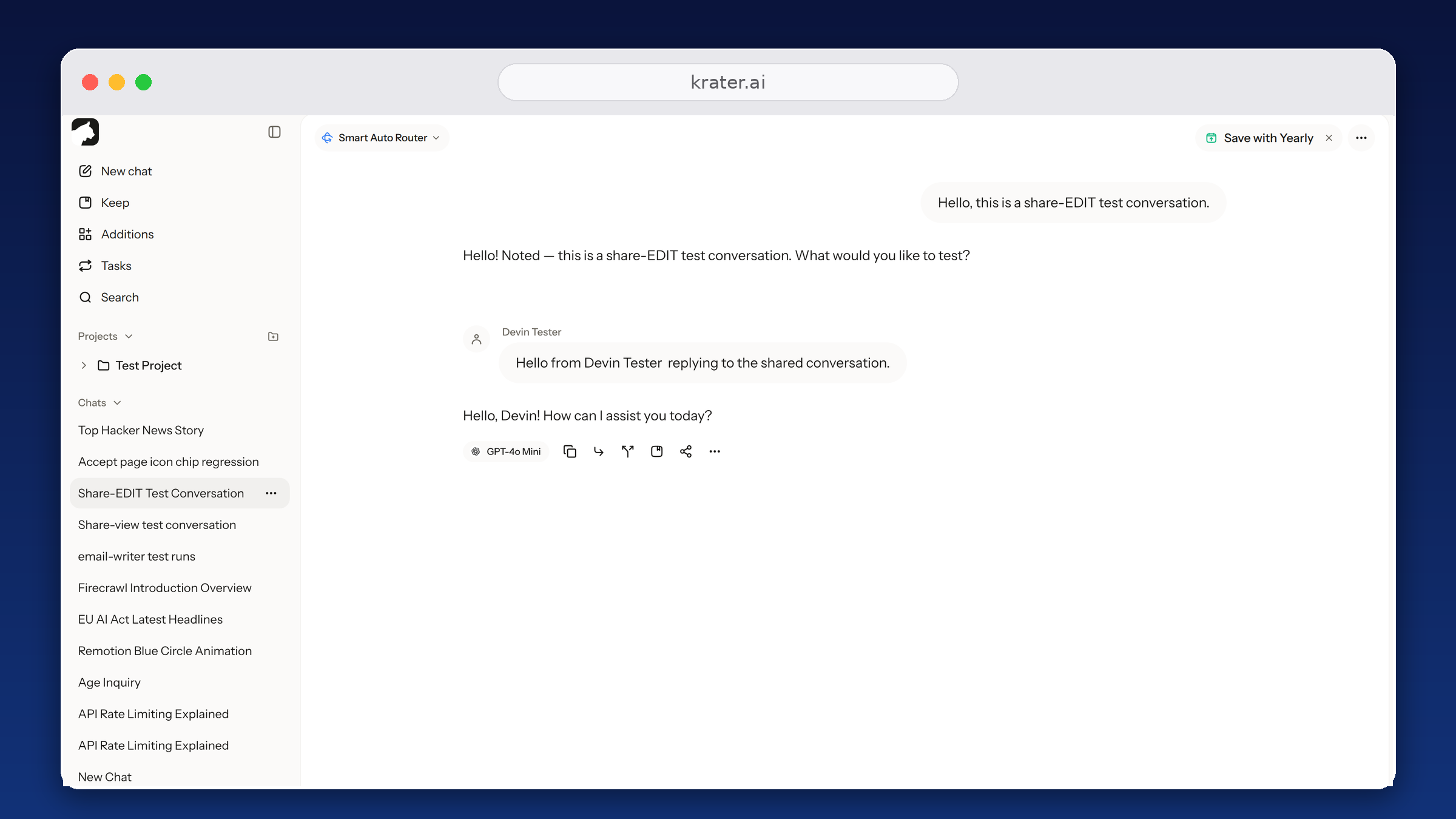
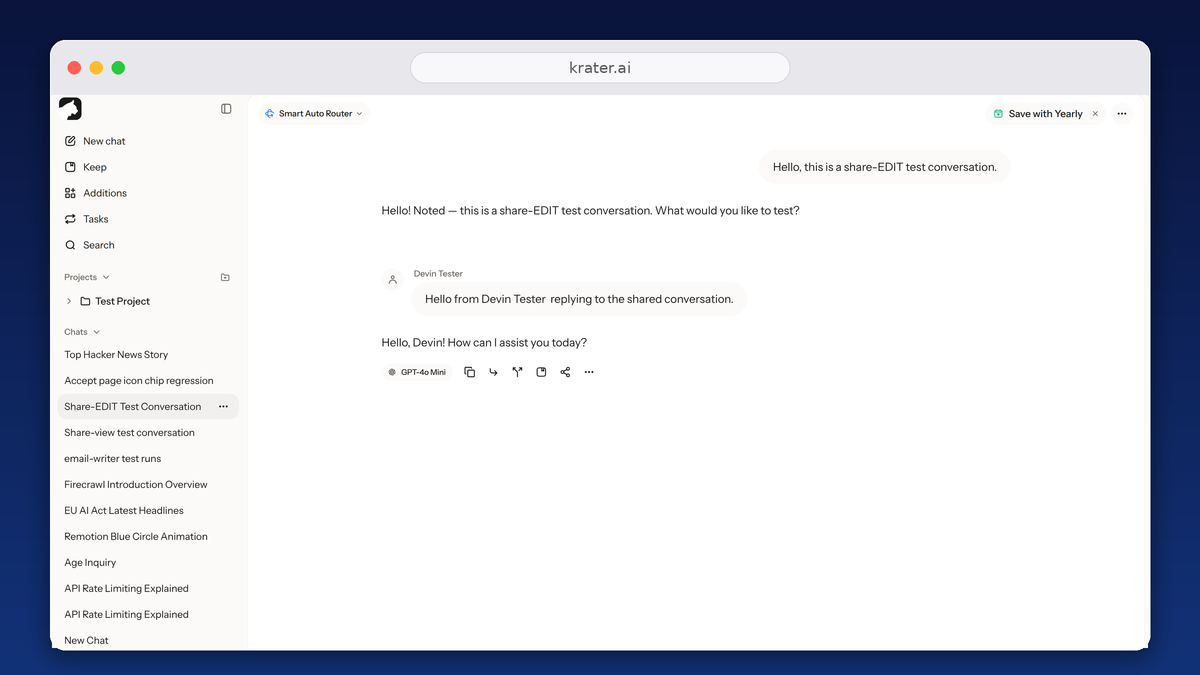
That is the common thread across Grok, ChatGPT, Claude and Gemini: they share pages, not conversations. On Krater, an invite link set to Can edit lets the other person post inside the same thread. Because a Krater chat can contain turns from different models, one shared link can show Grok, GPT, Claude and Gemini answers side by side.
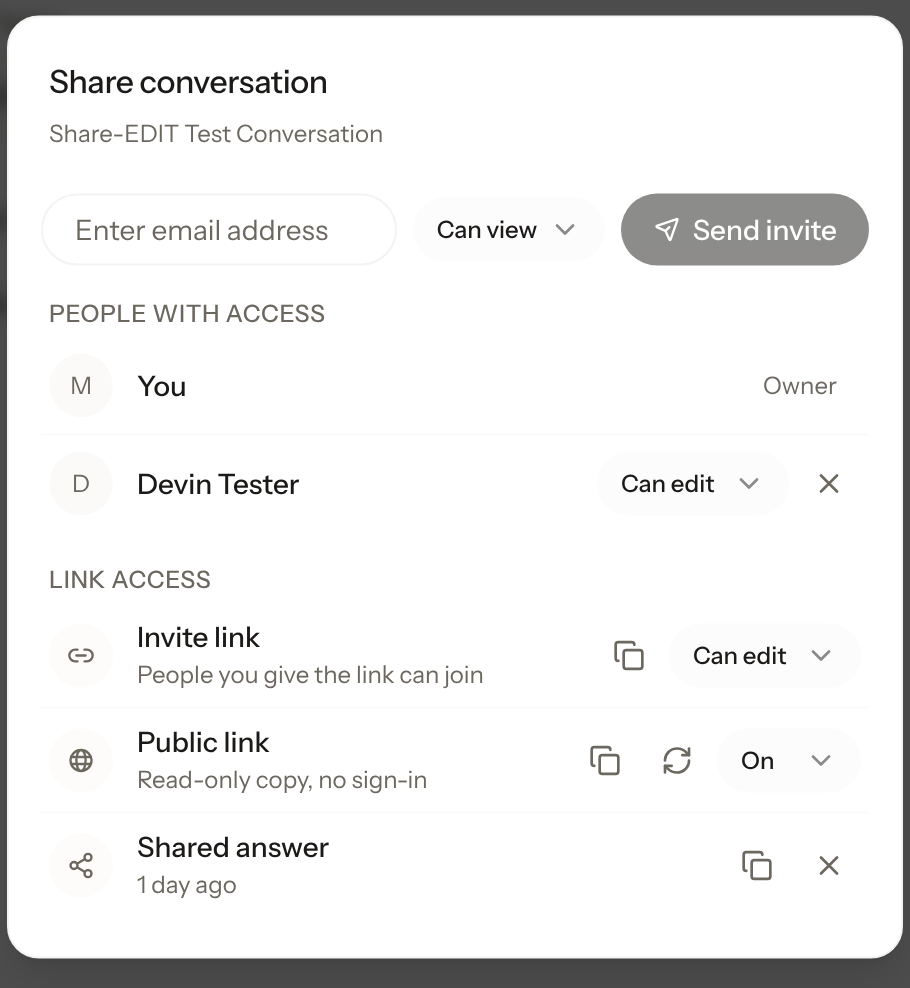
To share on Krater: open the conversation, click Share, then create an invite link set to View or Edit or send an email invite. For a read-only page like Grok's, turn on the public link and send the snapshot, which needs no sign-in. The full walkthrough is on the sharing feature page.
More guides: sharing in every AI app, share a ChatGPT conversation, share Claude chats, share a Gemini chat.
FAQ
Does someone need an X or Grok account to open a shared conversation? No. A Grok share link opens as a read-only page in the browser.
Can a recipient reply inside my shared Grok chat? No. The link is read-only, and continuing the conversation happens in the recipient's own account. Replies inside the same thread need an edit invite link, which Krater supports.
Does sharing a Grok conversation post it to X? No. Creating the link only makes the conversation viewable by whoever has the URL. Posting it anywhere is up to you.
How do I unshare a Grok conversation? Delete the share link from the conversation's share menu. Anyone holding the URL loses access.
Checked 3 October 2026 on grok.com.