Invite link
Create a link from the Share dialog inside a chat. Pick View for read-only access or Edit so the other person can reply in the same thread. Turn the link off again whenever you want.


Share any Krater conversation three ways: an invite link with view or edit access, an email invite, or a public snapshot anyone can read without signing in. Shared projects carry the files, memory and knowledge along too.
Share any Krater conversation three ways: an invite link with view or edit access, an email invite, or a public snapshot anyone can read without signing in. Shared projects carry the files, memory and knowledge along too.
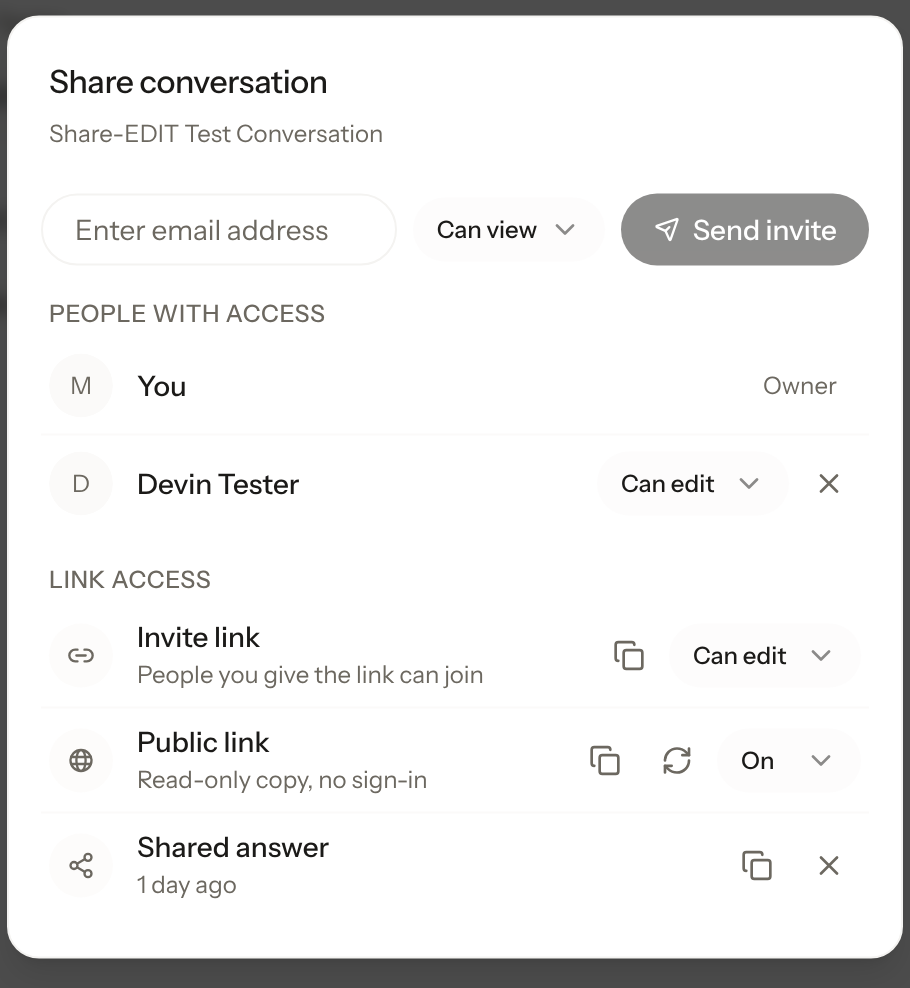
Create a link from the Share dialog inside a chat. Pick View for read-only access or Edit so the other person can reply in the same thread. Turn the link off again whenever you want.
Send the conversation to a specific person instead of a link. The invite sits as pending until they accept it, and you see exactly who has access in the same dialog.
One click publishes a read-only copy of the chat at a public URL. No sign-in is needed to read it, and it stays frozen at that version until you update it or turn it off.
A Krater project groups related chats, files and a knowledge base. Sharing the project once gives people access to all of it, instead of sending chat links one by one.
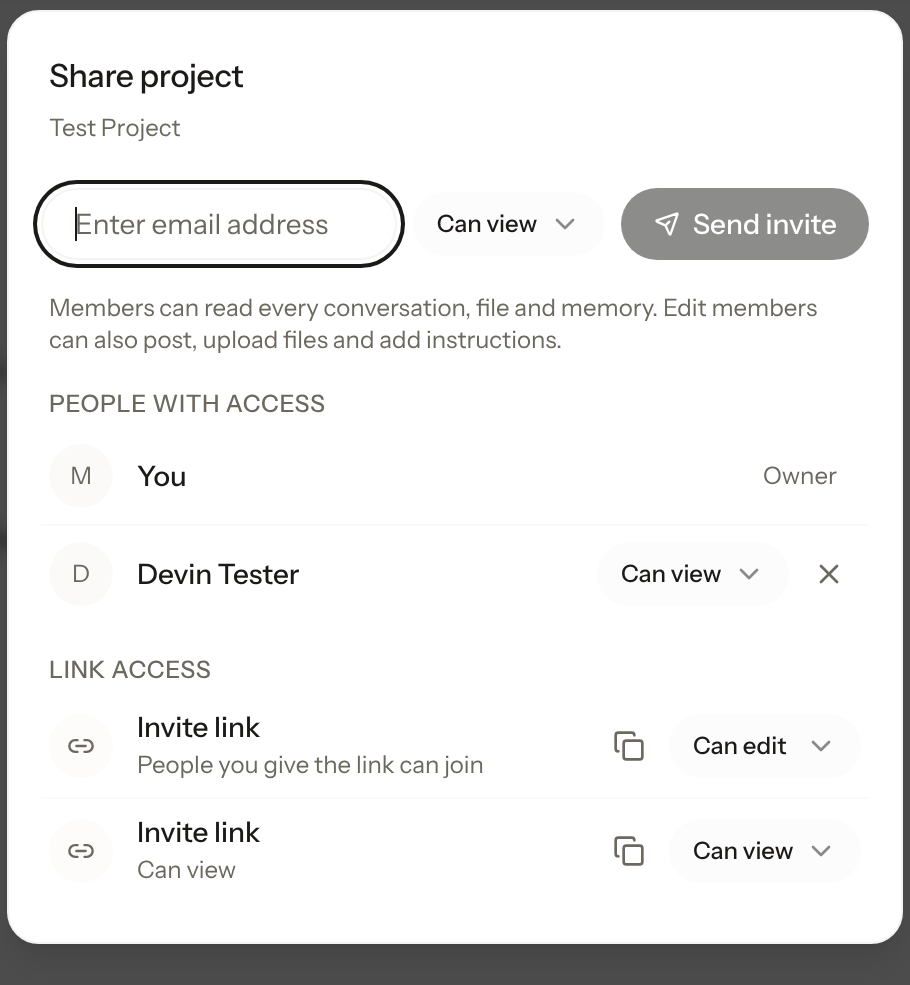
Every major AI app can produce a link you can send. What differs is what the person on the other end can do with it, checked 3 October 2026 against each vendor’s own help docs.
| Krater | ChatGPT | Claude | Gemini | |
|---|---|---|---|---|
| Read-only share link | Yes | Yes | Yes | Yes |
| Readable with no account | Yes (public snapshot) | Yes | Yes | Yes |
| Recipient replies inside the same chat | Yes, with Edit access | No, it continues as a private copy | No | No |
| Share a whole project or folder | Yes, chats plus files, memory and instructions | Workspace plans only | Team and Enterprise only | No |
| Different AI models in one shared thread | Yes, 400+ models | No | No | No |
ChatGPT shared links are snapshots: messages added later need the link refreshed, and recipients who continue the chat get a separate private copy. Claude chat links are read-only and project sharing is limited to Team and Enterprise workspaces. Gemini share links are read-only too.
A public snapshot opens as a clean read-only page. No account, no app install: just your conversation, including replies from the people you shared it with.
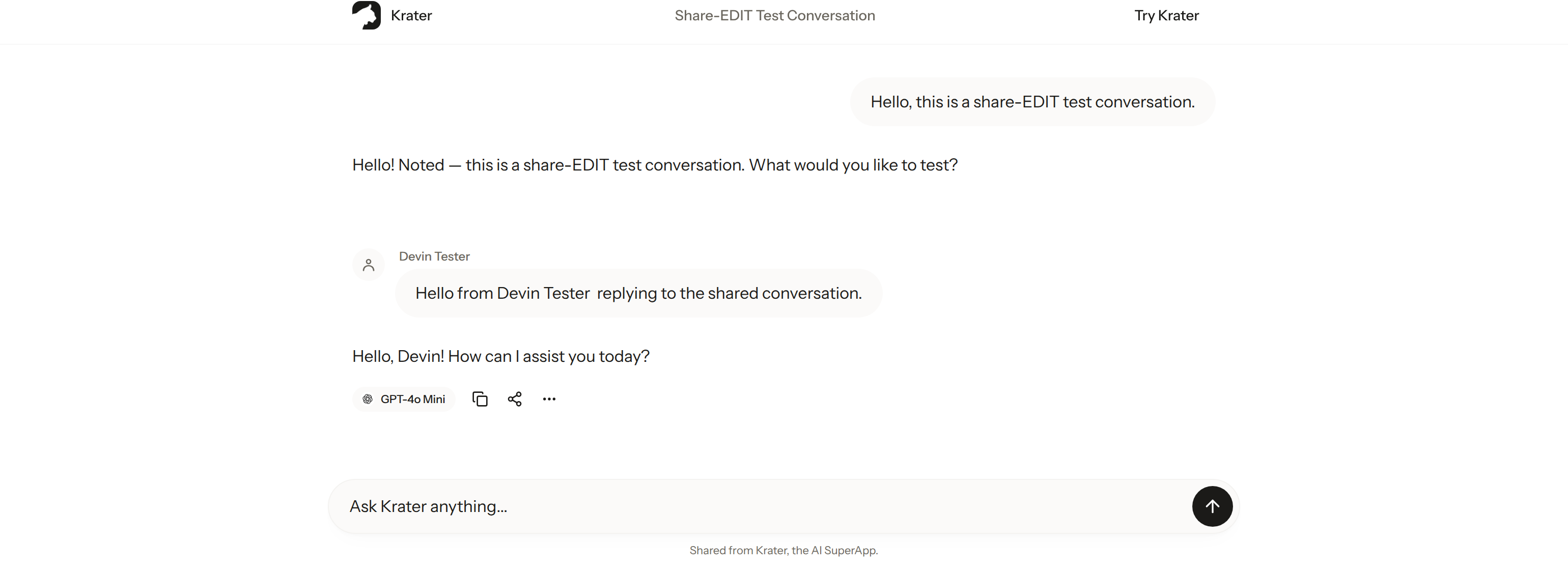
Private shares ask the recipient to sign in to Krater, so you always know who is inside the conversation. A public snapshot link needs no account at all: anyone with the URL can read it.
Only if you gave them Edit access. View links, view invites and public snapshots are all read-only, and you can remove any member or turn a link off from the same Share dialog.
No. The snapshot stays frozen at the version you published, which is usually what you want when showing work. You can update it to the latest messages or turn it off at any time.
Two things. Edit access lets people reply inside your shared chat instead of forking a private copy. And a Krater chat can contain turns from different models, so one shared link can show GPT, Claude and Gemini answers side by side.
View links, edit access, shared projects and public snapshots. One workspace, 400+ models.